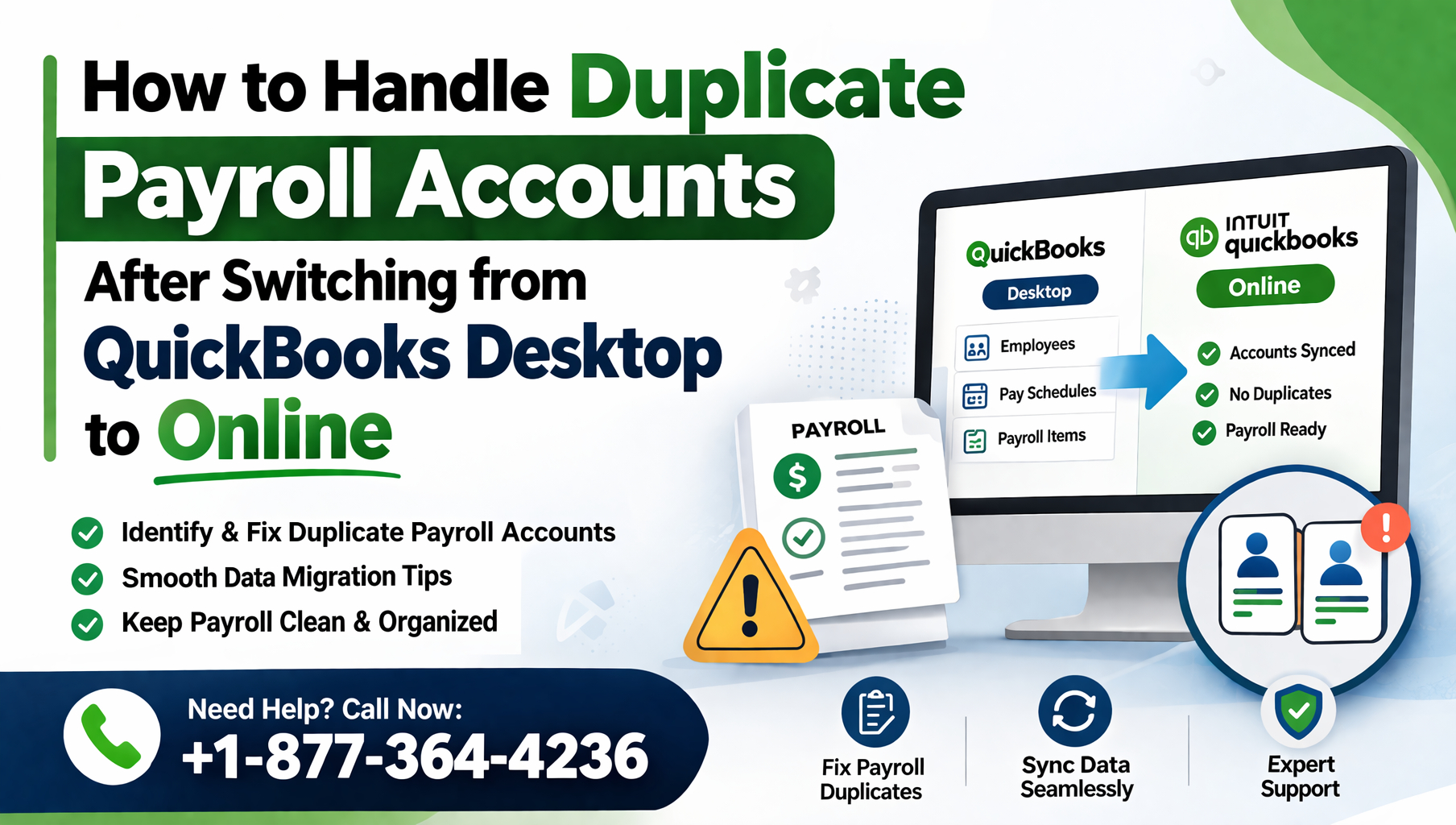
Migrating from QuickBooks Desktop to QuickBooks Online is a big step forward—but it often comes with unexpected challenges. One of the most common and confusing issues businesses face is QuickBooks Online duplicate payroll account problems after migration.
If you’re seeing multiple payroll accounts, mismatched totals, or struggling with QuickBooks Online payroll migration, you’re not alone. These issues can affect reporting accuracy, tax filings, and overall bookkeeping clarity.
In this in-depth guide, we’ll walk you through:
- Why duplicate payroll accounts happen
- Whether you should merge or keep them
- How to fix payroll discrepancies
- Best practices for smooth payroll management going forward
Understanding Payroll Migration Issues
When you perform a QuickBooks Online payroll conversion, not all payroll data transfers perfectly. Payroll systems are complex, involving:
- Employee wages
- Taxes
- Benefits
- Liabilities
Because of this, QuickBooks Online payroll migration often results in:
- Duplicate accounts
- Missing balances
- Incorrect payroll totals
Also Read: How to Fix QuickBooks Mac 2024 Registration Errors and 2022 Freezing Issues
Why Duplicate Payroll Accounts Occur
The issue of QuickBooks Online duplicate payroll account usually happens due to:
1. Chart of Accounts Mapping Errors
During migration, QuickBooks may create:
- New payroll expense accounts
- New liability accounts
Even if similar accounts already exist.
2. Payroll Setup Reconfiguration
When setting up QuickBooks Online payroll setup, the system may:
- Automatically generate default payroll accounts
- Ignore previously imported ones
3. Manual Adjustments
If you or your accountant:
- Added accounts manually
- Imported payroll again
You may end up with duplicates.
4. Integration with Payroll Tools
Using tools like QuickBooks Time can also create:
- Additional payroll-linked accounts
- Sync-related duplicates
Also Read: QuickBooks Online: How to Transfer Money Out of a Clearing or Holding Account (Complete Guide)
Can You Merge Payroll Accounts in QuickBooks Online?
Short Answer: Not directly (in most cases)
Unlike standard accounts, payroll-related accounts are often system-controlled.
What You Can Do:
- Merge similar expense accounts (non-system)
- Reassign transactions
- Make old accounts inactive
Immediate Steps to Take After Migration
After completing your QuickBooks Online payroll conversion, take these steps immediately:
Step 1: Review Chart of Accounts
- Identify duplicate payroll accounts
- Compare names and balances
Step 2: Check Payroll Settings
- Go to Payroll Settings
- Verify linked accounts
Step 3: Run Payroll Reports
Compare:
- Payroll Summary
- Payroll Detail
How to Handle Duplicate Payroll Accounts
Here’s the practical approach to how to handle duplicate QuickBooks Online payroll accounts:
Option 1: Consolidate Usage (Recommended)
Instead of merging, choose one account to use going forward.
Steps:
- Identify correct payroll accounts
- Update payroll settings
- Assign future transactions to selected accounts
Option 2: Reclassify Transactions
For duplicate entries:
- Use journal entries
- Move balances to correct account
Also Read: How to Add a W-9 to a Contractor in QuickBooks Online After Sending the Invite
Option 3: Make Duplicate Accounts Inactive
Once cleaned up:
- Set duplicate accounts to inactive
- Keep them for historical records
Option 4: Start Fresh Payroll Setup
If things are too messy:
- Reset payroll setup
- Reconfigure accounts
This is often best for:
- Severe QuickBooks Online payroll issues
- Incorrect totals
Reconciling Payroll Totals After Conversion
One of the biggest challenges is:
QuickBooks Online payroll 2026 totals matching
Step-by-Step Reconciliation:
1. Compare Reports
From Desktop vs Online:
- Payroll Summary
- Tax Liability
2. Identify Differences
Look for:
- Missing wages
- Duplicate entries
3. Adjust Using Journal Entries
Correct discrepancies carefully.
4. Verify Tax Balances
Ensure:
- Federal taxes
- State taxes
match correctly.
Managing Prior Year Payroll Data
During managing prior year payroll during QBO migration, you have two options:
Option A: Keep Historical Data in Old Account
- Leave Desktop as archive
- Use Online for current year
Option B: Import Summary Data Only
- Enter opening balances
- Avoid full transaction migration
Starting Fresh Payroll in a New Year
Many businesses prefer:
QuickBooks Online payroll start fresh 2027
Benefits:
- Clean accounts
- No duplicate confusion
- Accurate reporting
How to Do It:
- Finish current year in old system
- Start new payroll in QBO
- Enter opening balances
Key Tip:
Do NOT mix:
- Old payroll accounts
- New payroll setup
QuickBooks Time Payroll Integration Considerations
If you’re using QuickBooks Time:
Watch for:
- Duplicate payroll mapping
- Incorrect wage categories
Best Practices:
- Sync only one payroll account
- Verify integration settings
- Test before full rollout
Payroll Migration Best Practices
Follow these QuickBooks Online payroll conversion best practices:
✔ Clean Up Desktop First
- Remove unused accounts
- Fix errors before migration
✔ Plan Chart of Accounts
- Standardize naming
- Avoid duplicates
✔ Test Payroll Setup
Before running real payroll:
- Run test transactions
✔ Work with Accountant
Payroll is sensitive—get expert help.
Common Mistakes to Avoid
❌ Keeping All Duplicate Accounts Active
Leads to confusion and reporting errors.
❌ Ignoring Payroll Discrepancies
Can cause tax filing issues.
❌ Mixing Old and New Payroll Systems
Creates inconsistent data.
❌ Delaying Cleanup
The longer you wait, the harder it gets.
FAQs
It can cause:
Reporting confusion
Incorrect totals
Tax errors
Not always—especially system-generated accounts.
Only summary data is recommended.
Compare reports and adjust with journal entries.
Yes, especially at year start—it’s often cleaner.
Final Thoughts
Handling QuickBooks Online duplicate payroll account issues after migration can feel overwhelming—but it’s completely manageable with the right approach.
The key strategies are:
- Consolidate accounts instead of merging
- Reconcile totals carefully
- Keep historical data separate
- Start fresh when necessary
By following these steps, you can eliminate confusion, ensure accurate reporting, and maintain compliance in your payroll system.